Showing posts with label TM1. Show all posts

Tuesday, October 20, 2015

Working with Undefined (Null) Values in an IBM Cognos TM1Cube

▬▬▬▬▬▬▬▬▬▬▬▬▬▬ஜ۩۞۩ஜ▬▬▬▬▬▬▬▬▬▬▬▬▬▬
In an IBM Cognos TM1 server, by default numeric values are stored as 0.  When the cell content is retrieved either in TI or through rules, a value of zero is returned.  This means TM1 does NOT differentiate between missing data (null value) and zero.  In other words, you will not be able to differentiate the cells for which there does not exist data, with the ones where data is 0. 
To work with situations where we need to differentiate between missing data and zero, we can use UNDEFVALS in the rule of an IBM Cognos TM1 cube.  If UNDEFVALS is used then the default value is changed from 0 to a special undefined value.

Let’s create a simple 3 dimensional cube available from Planing Sample database, namely:
  1. plan_version
  2. plan_business_unit
  3. plan_department
We will be working with integer data alone.  The cube looks like this, without any rules;


Let us go ahead and add this as the 1st line of the rules file and save the rules.  Notice the view

 
All the Zeroes have vanished and instead you will see blanks.  At the intersection of UK and Direct, key a value of 0, turn on zero suppression and recalculate the view.  It will appear like this:


03_UKDirectZero

 
It means that, zero suppression will actually turn off the special undefined value, instead of zeroes.  It is a side effect of using UNDEFVALS in the rule definition.  This unintended consequence is visible in Turbo Integrator (TI) as well.


If you were to save this view and use it as source in TI (see screen for the view spec), then perform an AsciiOutput of the data records, you will get zeroes as part of your data.

How to reset data in a cube with UNDEFVALS?

In a cube without UNDEFVALS, if there is a value in an intersection of a cube and you hit delete, then the intersection value is reverted to zero.  Let us consider ways to accomplish this in a cube with UNDEFVALS.
Manual Option
This is applicable only if you have limited cells to work with.  As mentioned in this IBM KB, by inputting a value of 4.94066e-324 in the intersections.  To illustrate this, look at the screenshot below.  The LHS of the picture shows where a value of zero was present.  And on the RHS by inputting the aforementioned value and hitting recalc, the  zeroes goes away.


Turbo Integrator (TI) Option
  • CubeClearData – This will reset all the non-rule driven intersections to the undefined/null value
  • Sometimes however you may want to reset only part of cube and not the entire cube.  Our instinct is to use ViewZeroOut.  However ViewZeroOut on an UNDEFVALS cube will only ZERO out the intersections, it will NOT reset the intersections to undefined/null value
  • In such situations, you can use CellPutN a value of 4.94066e-324 in those intersections and reset the data to undefined/null value
  • Alternately you can use new function in 10.2 UndefinedCellValue for this case (valid in both rules and TI).  This function returns either 0 (on a cube without Undefvals declaration) or special undefined value (on a cube with Undefvals declaration) – see below snippet
vx_UndefValue = UndefinedCellValue (vs_CubeName);
CellPutN (vx_UndefValue, vs_CubeName, ‘FY 2003 Budget’, ‘UK’, ‘Finance’);

10.2 Reference Guide documentation incorrectly states that cube name is an optional parameter; APAR PI50000 is raised to correct it.  If the cube name is not supplied then the function returns 0.

How to check for an undefined/null value in cube?

Foremost of all, to know which cubes have UNDEFVALS declaration, you can loop through the }Cubes dimension and pass it to UndefinedCellValue function; an AsciiOutput of this call will list such cubes.  This is possible only in 10.2.

Well, let’s suppose you do have a cube with UNDEFVALS.  When you want to work with such cubes, you’d like to know whether or not, given intersection has undefined/null value in it.  To do that you can utilize the ISUNDEFINEDCELLVALUE function (valid in both rules and TI)

IsUndefinedCellValue function compares the passed value to the cube’s default view and returns 1 if true; otherwise it returns 0.  Now let’s go ahead and add below rule line
Undefvals;
[‘Germany’] = N:
    IF ( IsUndefinedCellValue ( [‘UK’] ) = 1    
        , UndefinedCellValue    
        , 88   
        );
I am trying assign a value of 88 for all cells of Germany, where corresponding cells of UK have a valid value (including 0).  With some sample values assigned, a view of the Cognos TM1 cube with UNDEFVALS will look like below (please note Marketing and Engineering are NOT the children of Sales, they are children of Total Org):


Let’s now add Skipcheck and Feeders to the rules file to see its impact with zero suppression on the cube view:
SKIPCHECK;
Undefvals;
    
[‘Germany’] = N:
    IF ( IsUndefinedCellValue ( [‘UK’] ) = 1    
        , UndefinedCellValue    
        , 88    
        );
FEEDERS;
[‘UK’] => [‘Germany’];


Notice that a value of zero (UK, IT) is able to FEED the (Germany, IT) intersection.  This is one of the impact of using UNDEFVALS in the cube.

If you want to find out the actual value of the special undefined value that IBM Cognos TM1 server assigns to your cube, then you can write a small TI snippet to find that out.  See screenshot below:


Catalogue your dimension creation processes in Cognos TM1

Are you at the helm of maintaining a very large TM1 model?  Or did you inherit a TM1 model and want insight into the system?  Say you have a new person on the team and he/she is not sure which process creates what dimension!

Well, the below post will help you make your job little easier, at least when it comes to dimension creation/updation. We are going to leverage the }DimensionAttributes control cube for a neat trick to map dimensions with their create/update processes.  This control cube stores attributes for all the dimensions that appear in your TM1 server.

Let’s see, a large TM1 model includes several dimensions – most of which are created through TI processes.  This is true in many implementations, since metadata for your model is sourced from external systems, which feed into TM1.  At the end of day, your Architect will look like this –


Right click on “Dimensions” -> Choose “Edit Attributes


From “Edit” menu, choose “Add New Attribute


Type “CreatedBy” as attribute name of Type “Text” and click OK.  Your screen should now look like:


You will see the newly created attribute along with others that currently exist on your system.  Click OK.  Go back to Architect


When we created a new attribute “CreatedBy” for the dimensions, IBM Cognos TM1 behind the scenes updates a control cube }DimensionAttributes.  You can choose to display control objects in your Architect and see how the cube looks like.  All that is now left, is to modify your dimension creation process and add a small piece of code in the Epilog.  To illustrate this, I will use a text file as source and create a dimension “A_Sample_Dim”.  Text file has following data in it:
ElemName, ParentName
Direct, Sales
Indirect, Sales
PSO, Sales
Sales, TOTAL ORG
Maketing, TOTAL ORG
Engineering, TOTAL ORG
GA, TOTAL ORG
Finance, GA
IT, GA
Administration, GA
Create a new process to use this as source for your Turbo Integrator process and choose appropriate fields as shown below:


Go to Variables tab and in “Contents” choose as “Other” for both the variables.  Below is the code in various tabs

PROLOG
vs_DimName = ‘A_Sample_Dim’;
IF (DimensionExists (vs_DimName) = 0 );
    DimensionDestroy (vs_DimName);
ENDIF;
DimensionCreate (vs_DimName);
METADATA
DimensionElementInsert (vs_DimName, ”, ElemName, ‘N’);
DimensionElementInsert (vs_DimName, ”, ParentName, ‘N’);
DimensionElementComponentAdd (vs_DimName, ParentName, ElemName, 1);
This is the normal dimension creation process that most developers follow.  As mentioned before, we will need to add a small piece of code in the Epilog with following contents in it:

vs_CubeName = ‘}DimensionAttributes’;
vs_TIName = GetProcessName;
CellPutS (vs_TIName, vs_CubeName, vs_DimName, ‘CreatedBy’);

Save and run your code.  You should now see the value in Architect.  This approach has to be adopted for all the dimension creation/updation process.


Closing Thoughts:

  1. Approach to populate the }DimensionAttributes cube to note the processes that build your TM1 model dimensions will go in a long way, for your ongoing support
  2. This approach need not be limited to process creation alone, you could extend this to various attributes that you could think of, on a given dimension.  For ex: owner, updation frequency, source etc.  All you’d need is additional attributes to capture them
ps: Help give feedback on the content.  At the top of the post (just below title), indicate your rating.  I’d appreciate that!

Wednesday, September 16, 2015

Manage User Sessions on your IBM Cognos TM1 Server

Being a TM1 administrator, at times we are required to manage user sessions on the system.  Some activities include finding active users or user activity on the system.  And in certain times, disconnect users as part of ongoing maintenance/system upkeep.

Track User activity

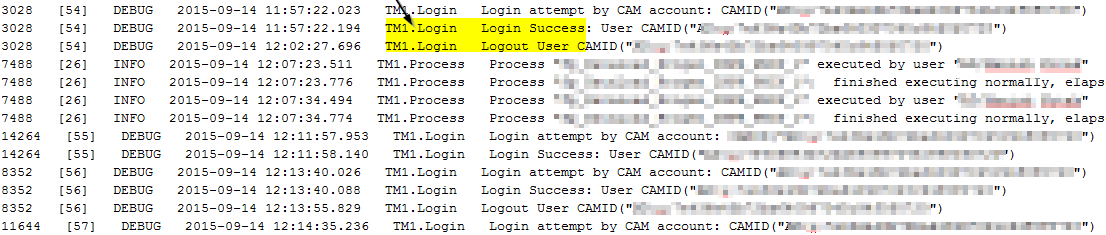
There is a mechanism available to track current active users on the TM1 instance.  However, if you want to see who all have logged on through the course of the day, or last few days, then you can enable the LOGIN Logger.  With 10.2.2 FP1 there are new loggers available.  One of them is TM1.Login, which will write the login and logout of all users into TM1Server.log file
If you already have a tm1s-log.properties file, then you’d need to do add this line.  If you don’t have this file, you can locate one in the directory of each sample TM1 database.  Location of the tm1s-log.properties should be in the same directory as that of the tm1s.cfg
log4j.logger.TM1.Login=DEBUG
Once done, you will see entries like below in the tm1server.log file, which will continually record the login/logout session of the users.  One fantastic thing is that, if you have BI report that uses TM1 as data source, then this logger will help you track the report executions as well.


Find Active Users

This is a fairly straightforward task, which will involve setting up a parameter in the tm1s.cfg file.  The parameter name is ClientPropertiesSyncInterval and it is dynamic.  This property tells us the frequency (in seconds), at which Clients’ properties in the Control Cube }ClientProperties is updated.  The example below will update every 5 minutes (300 seconds)
ClientPropertiesSyncInterval=300


Once you have done this setting, you can now open the control cube }ClientProperties and see the active users.  If this cube is not visible then, you would need to turn on the “Display Control Objects” from View menu.  Select STATUS as the element of interest, turn on zero suppression and it will now list active users on your instance.  It will not show the users who were active earlier and are now logged out.

Disconnect Users

There are situations that sometime leads you to disconnect users from the system:
  • During system maintenance, routine downtime etc
  • A developer has kicked off a TI and it can not be cancelled through TM1 Top or Operations console, then you can disconnect the user
To do this:
  1. Right click on your server -> Choose ‘Server Manager
  2. Choose option ‘Disconnect Clients‘, enter number of minutes
  3. Click on ‘Select Clients‘.  it will open up }Clients dimension.  Turn on the alias }TM1_DefaultDisplayValue (CAMIDs listed will not tell who the user is).  Click OK
  4. Click OK again … this will disconnect selected users from the TM1 instance.  You can verify this from your TM1 top session or Operations Console
Reference
TM1 Taking a Peek Under the Covers, and Learning how to Troubleshoot (Session #1169 @ IBM Vision 2015)


Thursday, July 23, 2015

Write to tm1server.log file from Turbo Intergrator (TI) process in Cognos TM1


All TM1 developers often use the TI function AsciiOutput to write to a file.  Most circumstances that lead to using AsciiOutput function is during troubleshooting of a TI process.
 
When the process does not behave as expected, we put the contents of multiple variables in a file at various places in the code, in conjunction with ProcessQuit and troubleshoot an issue.

What if you ever wanted to write something to tm1server.log, say to troubleshoot an issue or to capture information of your TI events?

Option 1: Use AsciiOutput

One of the options we have, is to use AsciiOutput.  Pitfall with this approach is that you will loose all the entries in tm1server.log, prior to the execution of your TI process.  This is not a preferred method to do it anyway!  (Unless AsciiAppend functionality sees light of the day, which hasn’t happened in last few years)

AsciiOutput (GetProcessErrorFileDirectory | ‘tm1server.log’, ‘This is a sample message’);

Option 2: Use Custom script (VB or Java)

Secondly, you could write a custom VB or Java script that accepts string as parameter and you could call the script using ExecuteCommand.  The script can be written in such a way to append to the tm1server.log file.  One thing to bear in mind is that the string that gets appended to the file, has the same column format as the tm1server.log.  This way the messages are standardized and your message doesn’t stand out.

Option 3: Use Java extensions in TI

With the Java Extension support in TI, IBM provides you the capability of writing to the tm1server.log.  Here’s the link to the article, explaining you how to do it.

Option 4: Use the new TI function LogOutput

Please read this completely before trying it out.  With 10.2.2 there are new loggers available.  Among them is TM1.TILogOutput; this logger allows you to write messages directly to the tm1server.log file.
Let’s create a simple TI Process with following lines of code and execute it:

LogOutput (‘INFO’, ‘HELLO WORLD – INFORMATION’);
LogOutput (‘DEBUG’, ‘HELLO WORLD – DEBUG’);
LogOutput (‘ERROR’, ‘HELLO WORLD – ERROR’);

LogOutput (‘info’, ‘Hello World – Innformation’);
LogOutput (‘debug’, ‘Hello World – Debug’);
LogOutput (‘error’, ‘Hello World – Error’);

The output will look like this:

The 1st parameter of the LogOutput function expects the message level – Info, Debug or Error.  It is NOT case-sensitive.  As evidenced by the output, the lines are repeated in the tm1server.log.  The output is tempting for those with curious eyes.  The line for debug (2nd and 4th in the TI) is not printed out.  For the TI to print out debug messages in the log file, we’d need to enable the logger TM1.LogOutput in tm1s-log.properties file.

If you already have a tm1s-log.properties file, then all you need to do is add this line.  If you do not have this file, you can locate one in the directory of each sample TM1 database.

log4j.logger.TM1.TILogOutput=DEBUG
Now re-run your process.  The output will look like this.

Passing Remark on tm1s-log.properties file:

    • tm1s-log.properties file should be located in the same directory as that of TM1s.cfg file
    • To suspend the logging set the logger value to OFF (log4j.logger.TM1.TILogOutput=OFF)
Reference – TM1 Taking a Peek Under the Covers, and Learning how to Troubleshoot (Session #1169 @ IBM Vision 2015)
 

Thursday, July 16, 2015

How to order/sort data in cube view used as a data source in Turbo Integrator (TI)?

An IBM Cognos TM1 cube view can be used as data source in a Turbo Integrator (TI) process. When such a view is used as a data source in TI, there is no control offered on how the cell intersections appear for processing. The order in which they appear, is determined by dimension index in the cube, and the subsets assigned for these dimensions.

Sometimes there is a need to process the data in an ordered format (say work top down i.e. process the data in descending order). We will look at ways to accomplish this.
Irrespective of the approach we take, it involves 3 steps namely –
  1. Export the entire data
  2. Order the data
  3. Use the Ordered data as data source
I will not delve into #1 (Export the data) and #3 (Use the ordered data).  These are straight forward steps.  Let’s discuss #2 (Order the data).  Broadly there are couple of options:
  1. Perform it outside of TM1
  2. Use a workaround and do it within TM1

Order/Sort the data outside of TM1

In this method, we’d need to export the data to a table in a database.  Use ODBC as data source and write a query with ORDER BY clause to perform the operation we need, there by leveraging the power of SQL.
Alternately, we could export to a flat file and do the ordering using excel or a scripting language of your choice.  Later this file can be used as data source.

Use Work around technique and perform the ordering/sorting withing TM1

There is no predefined function/method available in TM1 which can accomplish the work.  Instead, we will be relying on MDX and a temporary dimension to get the work done.  When everything is done, it will produce a file that is ordered/sorted per users choice – ascending or descending.  At a high level we will perform these steps:
  1. We will need one process that will read the cube view (which needs to be sorted) as data source
    • In this process, create a temp dimension in prolog
    • In addition, create ‘S’ attributes equal to the number of dimensions in the cube; plus one ‘N’ type attribute
    • In Data tab, add elements to the dimension
    • For each string attribute, add the dimension values of the cube
    • In the numeric attribute put the NValue
    • In Epilog, create a subset on this dimension using MDX expression.  We will use MDX function ORDER to sort the dimension by it’s attribute (numeric attribute) and create a subset
  2. We will need 2nd process that will use the subset as the data source.  Since the subset is already ordered, looping through the elements in this subset is equivalent to ordering the data
    • In the Data tab, we will retrieve all the attribute of the element and put it in a file
To summarize
  • We are creating a dimension which has elements equal to number of cells we will be working with
  • Add attribute to each element in the dimension.  Each attribute corresponding to the element information that make up the intersection
  • Order the elements in the dimension by using MDX function ORDER
  • Use this ordered subset and export the attributes of the element to a flat file.  This is the data we want to work with
If the number of intersections is very high (to the tune of millions) then there is overhead in terms of creating a dimension with that many elements as well as ordering it using MDX.  It might be faster to perform it in a DB … YMMV

As of writing this post, I am NOT aware of any method to attach file in the blog.  So I will try explaining it with snippets of code and screenshots.  We will use Planning Sample server and work with cube plan_BudgetPlan


In the Prolog tab of the 1st process we will build a view with the context elements highlighted.  We will also create the attributes.  The number of string type attributes equal the number of dimensions in cube and in addition, a numeric attribute to hold the intersection value.  The process accepts a parameter of ps_TempDimName … this is the dimension we will be working with to push the data and sort its elements.  Code snippets are taken from a process, which accepts 3 parameters:
  • TempDimName (explained above)
  • Sort Order (1 for Ascending and 2 for Descending)
  • Cube Name (whose data we want ORDERed BY)
AttrDelete (ps_TempDimName, ‘CubeValue’);
AttrInsert (ps_TempDimName, ”, ‘CubeValue’, ‘N’);
i = 0;
WHILE (i < vi_NumOfDims);
vs_AttrName = ‘Attr_’ | NumberToString (vi_NumOfDims – i);
AttrDelete (ps_TempDimName, vs_AttrName);
AttrInsert (ps_TempDimName, ”, vs_AttrName, ‘S’);
i = i + 1;
END;
AttrDelete (ps_TempDimName, ‘Attr_0′);

Now head over to the Data tab.  In here, we will add elements to the dimension as well as populate the attributes.  For those of you raising the eyebrows and wondering “Shouldn’t element insert happen in Metadata?“.  Take a look at the code below and check the underlined piece.  That should clear the doubt.

vs_ElemName = ‘Elem_’ | NumberToString (vi_RowCnt);
DimensionElementInsertDirect (ps_TempDimName, ”, vs_ElemName, ‘N’);

i = 1;
WHILE ( i <= vi_NumOfDims );
vs_AttrName = ‘Attr_’ | NumberToString (i);
CellPutS ( Expand ( ‘%v’ | NumberToString (i) | ‘%’), vs_AttrCube, vs_ElemName, vs_AttrName);
i = i + 1;
END;
vi_RowCnt = vi_RowCnt + 1;
CellPutN (NValue, vs_AttrCube, vs_ElemName, ‘CubeValue’);
 Let’s move on to the Epilog tab.  Here we will build the MDX expression and create the subset order in ascending or descending manner.  As the last step call the 2nd process

IF (pi_SortOrder = 1);
    vs_OrderBy = ‘ASC';
ELSE;
    vs_OrderBy = ‘DESC';
ENDIF;

vs_MDX = ‘{‘ | ‘ORDER ( TM1SubsetAll ( [‘ | ps_TempDimName | ‘]) , [‘ | ps_TempDimName | ‘].[CubeValue], ‘ | vs_OrderBy | ‘)}';

vs_Sorted_SubName = ‘zSubsetOrdered_’ | ‘vs_OrderBy';
IF (SubsetExists (ps_TempDimName, vs_Sorted_SubName) <> 0);
SubsetDeleteAllElements (ps_TempDimName, vs_Sorted_SubName);
ELSE;
SubsetCreate (ps_TempDimName, vs_Sorted_SubName);
ENDIF;

SubsetMDXSet (ps_TempDimName, vs_Sorted_SubName, vs_MDX);

ExecuteProcess (‘SECOND_PROCESS_NAME’, ‘ps_SubName’, vs_Sorted_SubName, ‘ps_TempDimName’, ps_TempDimName, ‘pi_NumOfDims’, vi_NumOfDims);

Below is a screen grab showing the attribute cube.  This would be output of the 1st process.


The 2nd process is fairly simple.  It will use Dimension Subset as data source and it will assign the Temp Dim Name’s subset  we are working with, as the source.  The Data tab of the code is pretty small.  All it does is, loop through the S and N type attributes and AsciiOutput to a file
vs_OutputStr = ”;
i = 1;
WHILE (i <= vi_NumOfDims);
IF (i=1);
vs_OutputStr = vs_OutputStr | CellGetS (vs_CubeName, V1, ‘Attr_’ | NumberToString (i));
ELSE;
vs_OutputStr = vs_OutputStr | ‘, ‘ | CellGetS (vs_CubeName, V1, ‘Attr_’ | NumberToString (i));
ENDIF;
i = i + 1;
END;
vs_OutputStr = vs_OutputStr | ‘, ‘ | numberToString (CellGetN (vs_CubeName, V1, ‘CubeValue’));
AsciiOutput (vs_FileName, V1, vs_OutputStr);
The sample file output will look like this:


 Now that you have the flat file, you can use this as data source for your 3rd process and move forward.  Just remember to handle the temp dimension and the flat file, after you are done working.  They need to cleared out.

Monday, July 6, 2015

Cognos TM1 Rand() function - it is NOT quite random after all !

Let me start the post with a Dilbert cartoon on Random number generator :)


Ok, so we have Rand() function in Cognos TM1 to generate random numbers,
  1. Which can be used in Rules as well as in Turbo Integrator (TI)
  2. Which is uniformly distributed between 0 and 1
  3. That generates a decimal with 9 digit precision (theoretically up to a billion combination of numbers)
  4. Whose seed is generated at the start of TM1 server
While I was analyzing the random number distribution, I noticed certain odd behavior.  Upon narrowing down the possible culprit, what I found out is that, IBM Cognos TM1 Rand () function can generate up to 65,536 unique numbers.  Thereafter it starts repeating the numbers.  To test this behavior, enter below piece of code in the prolog of a TI process and execute it.
i = 1; iMax = 65536; WHILE ( i <= iMax *2 );
    IF (i <= iMax);
        vFile = 'sk1.txt';
    ELSE;
        vFile = 'sk2.txt';
    ENDIF;
    vFile = GetProcessErrorFileDirectory | vFile ;
    AsciiOutput (vFile, NumberToString (Rand()) );
    i = i + 1;
END;
It will generate 2 files where in
  • sk1.txt captures 1st to 65,536 Rand() calls
  • sk2.txt captures 65,537 onwards all the way to 131,072 Rand() calls
A screen grab showing the first several lines of these 2 files is below:
Once a TM1 server is ready then you can get up to 65,536 unique random numbers.  After that it is no longer random, it is predictable (with 100% accuracy). Besides, this number is on the server basis (not user basis)
Now let's modify the code slightly to prove the point.
vFile = 'sk3.txt';
vFile = GetProcessErrorFileDirectory | vFile ;
AsciiOutput (vFile, 'Code run by: ' | TM1User () );

i = 1;
iMax = 65536;
WHILE ( i <= iMax);
AsciiOutput (vFile, NumberToString (Rand()) );
i = i + 1;
END;
Run this process.  It will now create sk3.txt.  Log out from architect and log back in with a different user.  Modify the file name to sk4.txt, save and run the process
vFile = 'sk4.txt';
Let's compare sk3.txt with sk4.txt
 The random numbers generated between the 2 users are exactly the same i.e., the unique times IBM Cognos TM1 can generate random numbers is 65,536 and it is system wide (irrespective of users).  If the TM1 service associated with the server is restarted, then the slate is wiped clean.


Using ODBO as datasource in Cognos TM1 Turbo Integrator (TI) Process

Need to copy TM1 cube data from one server to another ... read below.
In IBM Cognos TM1 Turbo Integrator (TI) Process, we can use ODBO as data source type.  Using ODBO we can connect to other OLAP cubes (ex: MS SSAS, TM1 cubes in other environment). ODBO is an abbreviation of abbreviation (OLE DB for OLAP - Object Linking and Embedding DataBase for OnLine Analytical Processing)
In this post, we will see how to use this ODBO in a TI process and copy a cube content from one TM1 server to another.  To use the ODBO, we need to provide following information in the TI:
  • ODBO Provider Name - From the drop down choose IBM Cognos TM1 OLEDB MD Providee
  • ODBO Data Source - Enter your Admin Host (IP address or the DNS Alias).  If there are multiple NIC adapters present on your server, then enter the IP address on which the traffic of TM1 is routed
  • ODBO Catalog - This is the TM1 server name.  In below example we are connecting to Planning Sample instance
  • ODBO User ID, ODBO Password - Enter the credentials required to connect to the TM1 server
  • Connection Parameters - Leave it blank if you are working with native authentication (i.e. mode is 1), else you will need to enter the namespace name
Below is a screen grab of these parameters filled in.  Click on Connect.  If the parameters passed are correct, then the "Load ODBO Cube" tab (highlighted in yellow) is activated.


Note: If you have TM1 installed on AIX then please read this IBM KB article (Ref # 7041662) to work with ODBO

Before we jump ahead, let me show the cube list from the 2 environment.  In the top TM1 server there are no cubes and dimensions.  We will therefore be importing plan_Report cube from Planning Sample.  We will build the TI process to not only copy the cube data but also build the dimensions in the 1st server.

After you have successfully established the ODBO connection, click on the tab Load ODBO Cube.  Select the cube from where you want to pick the data, and enter the name of the target cube, as shown below.  Since we do NOT have the target cube, we will pick the choose option of Create cube.  Since we are copying data from one cube to another, there is possibility of copying a very large number of records.  In such scenarios, we wouldn't want to enable the logging (as this will create additional traffic, increase tm1s.log file size and slow down the process).  Therefore the option of Enable cube Logging is unchecked.

Now, click on the next tab Cube Dimensions and then on MDX Query tab, they should look like this below.  Since none of the dimensions exist in the target environment, I have chosen the option of Create and no filter is selected.  Observe the MDX of the highlighted dimension.


Let's go back to the Cube Dimensions tab and alter the filter on Departments dimension.  We could either select individual elements as shown


With level 2 selected the MDX will now appear as shown below.  Notice the change in MDX between this and the one previously shown.  In fact, you can compare the MDX for rest of the dimensions vs this one.  You will notice that, in case of Department MDX is explicitly selecting Level2 members, while in the others, it is using ISLeaf function to evaluate.


Now Save the process as LoadCube_ODBO and close the TI Editor. Let's take a look at the processes list in the target environment.


Not only has it created the main process, but it also has created child processes for each of the dimension involved in the cube build.  If you were to look in the prolog of the main process, in our case "LoadCube_ODBO", you will see that it executes the child processes first, before beginning the main process!

 
Well, I guess the engine is smart enough to create the child processes and in turn use them in the main process.  One limitation feature is that, if you were to open the main process, don't do anything else, just do a save as, in our case let's save it as "LoadCube_New_ODBO" and refresh the architect screen.  You will notice there is only one new process added to the existing list, as seen below:


The next logical question is, whether in the prolog tab of the new process
  • Is it still calling the old processes of dimension build? OR
  • Is it calling the processes with new name in dimension build?
If it is the latter, then surely there is a problem, isn't it?  The processes with new name for dimension build don't exist yet.  So let's just click on the prolog code (don't do anything else), notice the prolog code


It looks like we have a problem, don't we?  The processes are using new TI names for dimension build and yet in the architect they are not there!  We are still not done yet :) ... We were in the prolog screen looking at the code; now, click on save button and check out architect.  The processes have now been magically renamed to use the new names !!!  This is the feature you got to be aware of.


 Happy ODBOing!


Thursday, June 25, 2015

IBM Cognos TM1 Import source in SPSS reads incorrect data from TM1 Cube - How to fix it?

Last week, I published a post on reading IBM Cognos TM1 data into SPSS Modeler, using the newly available source palette within SPSS Modeler called "IBM Cognos TM1 Import".  One of my colleagues posed a question, where in she was getting incorrect results using Cognos TM1 cube as source in SPSS.  Last digit of the number gets dropped off in SPSS Modeler!


If you are on SPSS Modeler ver 17, there is no need to fret.  This is seen only in SPSS Modeler Ver 16.  There is a well documented KB article on IBM Site - "IBM Cognos TM1 Import source node is reading continuous data incorrectly" (Reference #:1683459).  The article tells us to modify the Process ExportToSPSS to fix the issue
Value = if(VALUE_IS_STRING = 1, SVALUE, NumberToStringEx(NVALUE,'#####0.0##', '.', ','));
This post describes how to make this change in the process.  There are 3 ways to implement this fix:
  1. Use IBM Cognos TM1 Architect
  2. Use IBM Cognos TM1 Performance Modeler
  3. Using Text Editor

Text Editor

You would really need to know what you are doing here.  There are numbers present in the beginning of every line, which TM1 system uses to parse out the code in a TI.  A wrong modification will result in unexpected behavior of the program, including errors.  I would not recommend this approach!

TM1 Performance Modeler

By far the easiest way to fix the code, especially in the current scenario.  I will explain more about using Architect and the problems faced, later.  If you open TM1 Performance Modeler, locate the TI process, double click, edit and save.  That's it.  You are ready to use the modified code in SPSS Modeler.
While the change is easy and swift to make, adding an extra line of code in TM1 Performance Modeler increased the file size from 55KB to 126KB !


TM1 Architect

If you open TM1 Architect, logon to the server, locate the TI and when you double click it, you get 2 error messages right away.  See the screens below:

The reason these messages pop up is because, this TI process uses IBM Cognos TM1 Cube View as data source and there is no cube view defined for it.:

If you click on Variables tab,you will notice there are 128 variables present.  So we will need to create a cube with 127 dimensions (yes that's right 127 dimensions, not 128).  128th variable will be the value (SValue or NValue) of the measure.


Using Architect to modify the process is not straightforward and will involve little bit of workaround.  I will explain that in detail here.  Below are the steps that need to be taken:
  • Create a cube with 127 dimensions
To help you create a cube with 127 dimensions, I have created a TI process.  At this time of writing I am not sure, how to attach a file (other than media) to the blog.  Therefore I am pasting the code below.  In this process, couple of parameters are defined and the code exists only in the Prolog tab.

vs_CubeName = pCubeName;
vi_MaxDims = 127;
IF (CubeExists (vs_CubeName) > 0);
    ItemReject ('Cube already exists. Quitting program with error');
    ProcessError;
ENDIF;
WHILE (vi_MaxDims > 0);
    vs_DimName = pDimName | NumberToStringEx (vi_MaxDims, '000', '', '');
    IF (DimensionExists (vs_DimName) = 0);
        DimensionCreate (vs_DimName);
        DimensionElementInsert (vs_DimName, '', vs_DimName, 'N');
    ENDIF;
    vi_MaxDims = vi_MaxDims - 1;
END;
CubeCreate (vs_CubeName,
    pDimName | '001', pDimName | '002', pDimName | '003', pDimName | '004', pDimName | '005', pDimName | '006', pDimName | '007', pDimName | '008', pDimName | '009', pDimName | '010', pDimName | '011', pDimName | '012', pDimName | '013', pDimName | '014', pDimName | '015', pDimName | '016', pDimName | '017', pDimName | '018', pDimName | '019', pDimName | '020', pDimName | '021', pDimName | '022', pDimName | '023', pDimName | '024', pDimName | '025', pDimName | '026', pDimName | '027', pDimName | '028', pDimName | '029', pDimName | '030', pDimName | '031', pDimName | '032', pDimName | '033', pDimName | '034', pDimName | '035', pDimName | '036', pDimName | '037', pDimName | '038', pDimName | '039', pDimName | '040', pDimName | '041', pDimName | '042', pDimName | '043', pDimName | '044', pDimName | '045', pDimName | '046', pDimName | '047', pDimName | '048', pDimName | '049', pDimName | '050', pDimName | '051', pDimName | '052', pDimName | '053', pDimName | '054', pDimName | '055', pDimName | '056', pDimName | '057
', pDimName | '058', pDimName | '059', pDimName | '060', pDimName | '061', pDimName | '062', pDimName | '063', pDimName | '064', pDimName | '065', pDimName | '066', pDimName | '067', pDimName | '068', pDimName | '069', pDimName | '070', pDimName | '071', pDimName | '072', pDimName | '073', pDimName | '074', pDimName | '075', pDimName | '076', pDimName | '077', pDimName | '078', pDimName | '079', pDimName | '080', pDimName | '081', pDimName | '082', pDimName | '083', pDimName | '084', pDimName | '085', pDimName | '086', pDimName | '087', pDimName | '088', pDimName | '089', pDimName | '090', pDimName | '091', pDimName | '092', pDimName | '093',
pDimName | '094', pDimName | '095', pDimName | '096', pDimName | '097', pDimName | '098', pDimName | '099', pDimName | '100', pDimName | '101', pDimName | '102', pDimName | '103', pDimName | '104', pDimName | '105', pDimName | '106', pDimName | '107', pDimName | '108', pDimName | '109', pDimName | '110', pDimName | '111', pDimName | '112', pDimName | '113', pDimName | '114', pDimName | '115', pDimName | '116', pDimName | '117', pDimName | '118', pDimName | '119', pDimName | '120', pDimName | '121', pDimName | '122', pDimName | '123', pDimName | '124', pDimName | '125', pDimName | '126', pDimName | '127');
ViewCreate (vs_CubeName, 'All');
  • Save and run the TI Process.  You will now see the cube name you supplied in parameter created and has 127 dimensions
  • Map the data source of the process to use a view on this 127 dimension cube
To do this, open the ExportToSPSS process in Architect.  Click Ok on any errors you get.  In DataSource Tab, click on Browse and select the cube you created and choose "All" as the view

After this, click on the Variables tab, you will be prompted with couple of options.  Choose the one highlighted

You can now go to the Data Tab, do the modification as recommended in the KB Article.  Comment out the old line and add the new line and save the process.  Ensure that preview in the IBM Cognos TM1 Import Palette runs correctly.
# vValue = if(VALUE_IS_STRING = 1, SVALUE, NumberToString(NVALUE));
vValue = if(VALUE_IS_STRING = 1, SVALUE, NumberToStringEx(NVALUE,'#####0.0##', '.', ','));

Closing Thoughts

  • If you are on IBM SPSS Modeler Ver 17, you will not face the issue of last digit being dropped
  • Modifying the code through TM1 Performance Modeler is fastest; but it increases the file size by 2.5 times.  We will need a file compare utility to figure out what has been additionally added by TM1 Performance Modeler
  • Using TM1 Architect is clean, however you will need to follow certain steps, before you are ready to make the change
  • In Ver 17, the file is named slightly different and the code difference between ver 16 and 17 is huge.  See below screen

  • As mentioned in my last blog, if you upgrade to a newer version of SPSS, there is need to copy these 3 files all over again to the various DATA directory of the TM1 server you are working with