Showing posts with label loggers. Show all posts

Wednesday, September 16, 2015

Manage User Sessions on your IBM Cognos TM1 Server

Being a TM1 administrator, at times we are required to manage user sessions on the system.  Some activities include finding active users or user activity on the system.  And in certain times, disconnect users as part of ongoing maintenance/system upkeep.

Track User activity

There is a mechanism available to track current active users on the TM1 instance.  However, if you want to see who all have logged on through the course of the day, or last few days, then you can enable the LOGIN Logger.  With 10.2.2 FP1 there are new loggers available.  One of them is TM1.Login, which will write the login and logout of all users into TM1Server.log file
If you already have a tm1s-log.properties file, then you’d need to do add this line.  If you don’t have this file, you can locate one in the directory of each sample TM1 database.  Location of the tm1s-log.properties should be in the same directory as that of the tm1s.cfg
log4j.logger.TM1.Login=DEBUG
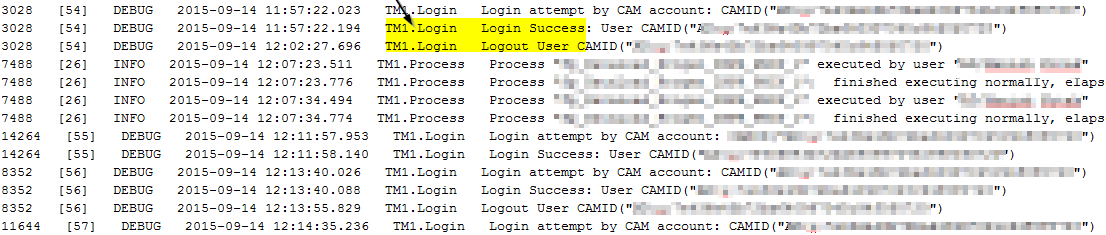
Once done, you will see entries like below in the tm1server.log file, which will continually record the login/logout session of the users.  One fantastic thing is that, if you have BI report that uses TM1 as data source, then this logger will help you track the report executions as well.
 

Find Active Users

This is a fairly straightforward task, which will involve setting up a parameter in the tm1s.cfg file.  The parameter name is ClientPropertiesSyncInterval and it is dynamic.  This property tells us the frequency (in seconds), at which Clients’ properties in the Control Cube }ClientProperties is updated.  The example below will update every 5 minutes (300 seconds)
ClientPropertiesSyncInterval=300


Once you have done this setting, you can now open the control cube }ClientProperties and see the active users.  If this cube is not visible then, you would need to turn on the “Display Control Objects” from View menu.  Select STATUS as the element of interest, turn on zero suppression and it will now list active users on your instance.  It will not show the users who were active earlier and are now logged out.

Disconnect Users

There are situations that sometime leads you to disconnect users from the system:
  • During system maintenance, routine downtime etc
  • A developer has kicked off a TI and it can not be cancelled through TM1 Top or Operations console, then you can disconnect the user
To do this:
  1. Right click on your server -> Choose ‘Server Manager
  2. Choose option ‘Disconnect Clients‘, enter number of minutes
  3. Click on ‘Select Clients‘.  it will open up }Clients dimension.  Turn on the alias }TM1_DefaultDisplayValue (CAMIDs listed will not tell who the user is).  Click OK
  4. Click OK again … this will disconnect selected users from the TM1 instance.  You can verify this from your TM1 top session or Operations Console
Reference
TM1 Taking a Peek Under the Covers, and Learning how to Troubleshoot (Session #1169 @ IBM Vision 2015)


Thursday, July 23, 2015

Write to tm1server.log file from Turbo Intergrator (TI) process in Cognos TM1


All TM1 developers often use the TI function AsciiOutput to write to a file.  Most circumstances that lead to using AsciiOutput function is during troubleshooting of a TI process.
 
When the process does not behave as expected, we put the contents of multiple variables in a file at various places in the code, in conjunction with ProcessQuit and troubleshoot an issue.

What if you ever wanted to write something to tm1server.log, say to troubleshoot an issue or to capture information of your TI events?

Option 1: Use AsciiOutput

One of the options we have, is to use AsciiOutput.  Pitfall with this approach is that you will loose all the entries in tm1server.log, prior to the execution of your TI process.  This is not a preferred method to do it anyway!  (Unless AsciiAppend functionality sees light of the day, which hasn’t happened in last few years)

AsciiOutput (GetProcessErrorFileDirectory | ‘tm1server.log’, ‘This is a sample message’);

Option 2: Use Custom script (VB or Java)

Secondly, you could write a custom VB or Java script that accepts string as parameter and you could call the script using ExecuteCommand.  The script can be written in such a way to append to the tm1server.log file.  One thing to bear in mind is that the string that gets appended to the file, has the same column format as the tm1server.log.  This way the messages are standardized and your message doesn’t stand out.

Option 3: Use Java extensions in TI

With the Java Extension support in TI, IBM provides you the capability of writing to the tm1server.log.  Here’s the link to the article, explaining you how to do it.

Option 4: Use the new TI function LogOutput

Please read this completely before trying it out.  With 10.2.2 there are new loggers available.  Among them is TM1.TILogOutput; this logger allows you to write messages directly to the tm1server.log file.
Let’s create a simple TI Process with following lines of code and execute it:

LogOutput (‘INFO’, ‘HELLO WORLD – INFORMATION’);
LogOutput (‘DEBUG’, ‘HELLO WORLD – DEBUG’);
LogOutput (‘ERROR’, ‘HELLO WORLD – ERROR’);

LogOutput (‘info’, ‘Hello World – Innformation’);
LogOutput (‘debug’, ‘Hello World – Debug’);
LogOutput (‘error’, ‘Hello World – Error’);

The output will look like this:

The 1st parameter of the LogOutput function expects the message level – Info, Debug or Error.  It is NOT case-sensitive.  As evidenced by the output, the lines are repeated in the tm1server.log.  The output is tempting for those with curious eyes.  The line for debug (2nd and 4th in the TI) is not printed out.  For the TI to print out debug messages in the log file, we’d need to enable the logger TM1.LogOutput in tm1s-log.properties file.

If you already have a tm1s-log.properties file, then all you need to do is add this line.  If you do not have this file, you can locate one in the directory of each sample TM1 database.

log4j.logger.TM1.TILogOutput=DEBUG
Now re-run your process.  The output will look like this.

Passing Remark on tm1s-log.properties file:

    • tm1s-log.properties file should be located in the same directory as that of TM1s.cfg file
    • To suspend the logging set the logger value to OFF (log4j.logger.TM1.TILogOutput=OFF)
Reference – TM1 Taking a Peek Under the Covers, and Learning how to Troubleshoot (Session #1169 @ IBM Vision 2015)